
Best free parental control app for iPhone In 2026: technical benchmarks, iOS settings and selection criteria to secure children's use without adding costs or complexity.
On iPhone, the most reliable free solution remains Screen Time, as it relies on native iOS mechanisms and limits common workarounds.
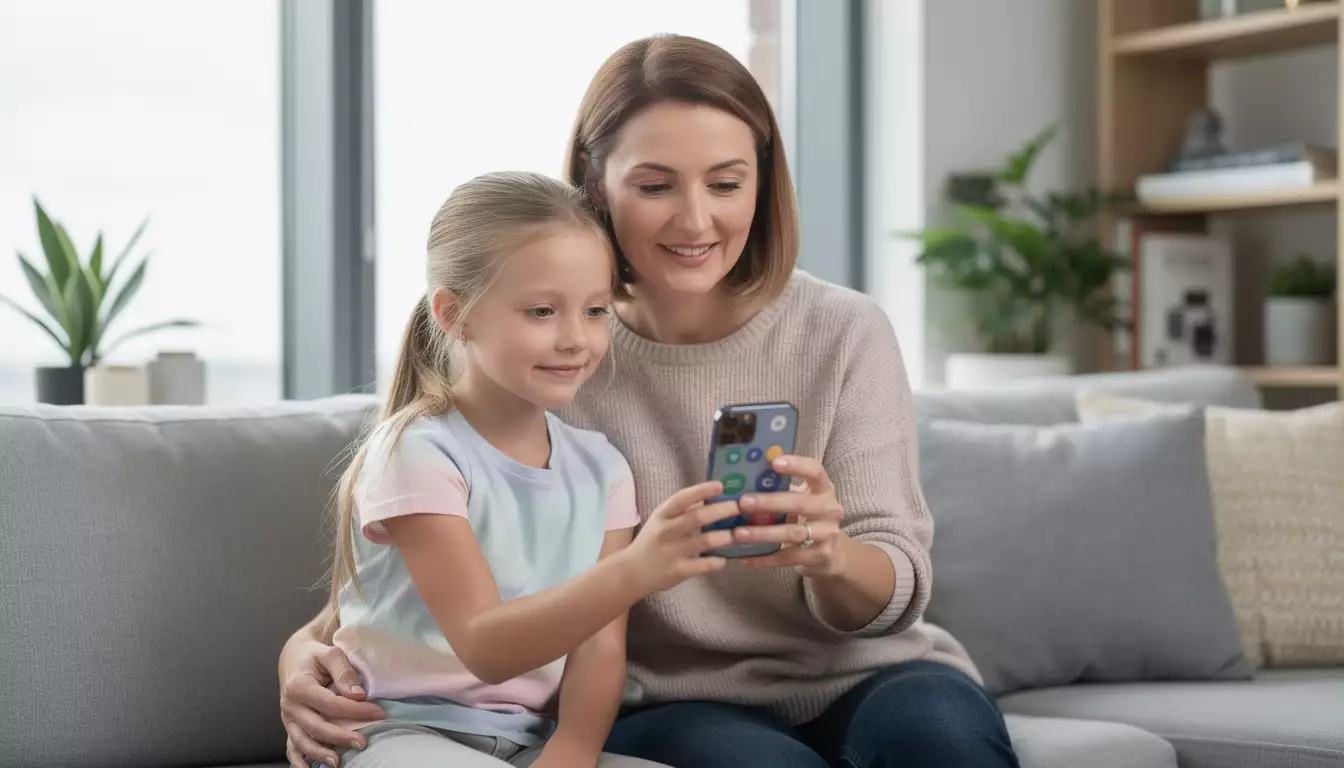
Best free parental control app for iPhone in 2026: what Screen Time on iOS actually covers
Screen Time, integrated into iOS, acts as a local governance layer that manages three areas: usage time, app permissions, and content restrictions. The advantage of a native component lies in its depth of integration: management of App Store purchases, web filtering via Safari, control of sensitive permissions, and detailed activity reports. For a parent, the goal is not simply to "block" content, but to obtain a stable configuration that remains consistent over time, even if the child installs new games, changes their school schedule, or spends more time on messaging apps.
A typical case, observed in many families, involves the rapid installation of free games with in-app purchases. With Screen Time, the most effective approach isn't a blanket ban, but a combined approach: disabling in-app purchases, requiring a password for each transaction, and limiting access based on age ratings. This approach reduces financial risk while preserving a degree of autonomy, thus avoiding the frustration that often leads to circumventing the rules.
Activation and security: family account, iCloud sharing, and parental code
The most robust setup involves an Apple family group. The child's iPhone and the parent's iPhone are linked via Family Sharing, allowing parents to view reports and adjust limits without having to handle the child's device each time. The cross-device sharing option also prevents inconsistencies if the child also uses an iPad.
The key technical point remains the Screen Time passcode. Without this passcode, a restriction becomes a mere suggestion. In practice, a passcode separate from the unlock code and not reused elsewhere limits unauthorized changes. Once the passcode is in place, iOS regularly requests confirmation of sensitive changes, which protects the settings against "quick tweaks" made in a matter of seconds.
Key features: downtime, app limits, web content, and communication
Downtime allows you to define specific periods during which only a few selected apps remain accessible. The most relevant uses are at the end of the evening, during homework time, or during school periods. The five-minute alert system before the restriction begins helps reduce conflicts, as the child anticipates the interruption.
App limits work on a per-app or per-category basis. A family might, for example, allow more time for educational apps than for social media. The "block at the end of the limit" restriction makes the rule clear, while still allowing the parent to allow a temporary exception with the code.
The Content & Privacy block acts as a behavioral firewall: it controls access to Safari, app installations, explicit content, Siri, and Game Center. Communication restrictions, available on iOS for several iterations, offer a tangible benefit: during restricted hours, only authorized contacts (close family, emergencies) can reach the child. This granularity is a game-changer for reducing nighttime or school-time communication, while still ensuring contactability when needed. This technical mastery naturally leads to the next question: at what point does a third-party application become relevant?

Best free parental control app for iPhone in 2026: step-by-step setup method and real-life scenarios
An effective setup relies on a method, not a collection of restrictions. The most stable approach is to start with the child's actual rhythm and then translate that rhythm into rules. A simple example: a middle school student uses their iPhone to chat, listen to music, and do research. Without structure, usage shifts to the evening, impacting sleep and attention. With Screen Time, it becomes possible to limit usage without cutting off access to essential features like Phone and Messages.
The setup begins in Settings, then Screen Time, by choosing “This device belongs to my child.” Next, enabling content restrictions, configuring purchases, and setting a time-out timer form the foundation. The most frequently overlooked section is the “Always Allowed” list. It should be kept short, as each exception becomes a security issue. However, keeping Maps or a transportation app there can be necessary for independence, especially for school runs.
Operational checklist for sustainable free iPhone parental controls
To minimize oversights and avoid a half-baked setup, a checklist helps standardize the implementation. The goal is to address common risks: exposure to inappropriate content, overconsumption, expenses, and unwanted exchanges.
- Activate family sharing and add the child to the group, in order to remotely control Screen Time.
- Define a separate, unguessable, and non-shared Screen Time code.
- Configure Downtime on sensitive periods (night, homework), with blocking if necessary.
- Create app limits by category (games, social networks, entertainment) rather than by single app.
- Disable in-app purchases and require a password for all purchases on Apple stores.
- Restrict web content (adult sites) and, for younger people, only allow a list of sites.
- Limit communication during locked hours to a list of trusted contacts.
- Control privacy permissions (location, photos, microphone) for the most used apps.
Once this foundation is established, the use of daily reports becomes a tool for dialogue. If the report shows 90 minutes a day on a short video app, the discussion can focus on the objective (relaxing) and a compromise (quota, fixed time slot, alternative). The effectiveness of parental controls often stems from this loop: measurement, rule, adjustment.
Use case: limiting purchases and reducing workarounds
The "unintentional purchase" scenario often occurs with freemium games. Blocking in-app purchases, coupled with password requirements, addresses the problem at its source. Another common workaround involves installing an alternative browser. Restricting app installations, or strictly controlling authorized apps, significantly reduces this risk.
In multi-device families, consistency is key. A child might switch to the iPad if the iPhone is limited. Hence the importance of sharing between devices and consistent rules across all iOS devices. This free framework covers most needs, but some families expect advanced features (tracking, multi-platform monitoring): this is precisely where external solutions and expert support like DualMedia come in.
To learn more about iOS settings, a video demonstration helps to visualize the menus and avoid configuration errors.
Best free parental control app for iPhone in 2026: compare native iOS and third-party apps, with criteria and a table
Screen Time covers the essentials for free, but third-party apps remain relevant when the need extends beyond the iOS ecosystem. This is common in two cases: multi-OS families (iPhone + Android) and more advanced remote monitoring requirements (advanced geolocation, contextual alerts, centralized reports). However, it's important to keep in mind the history of the Apple ecosystem: for several years, iOS has strengthened its protections and reduced the technical freedoms of parental control apps, particularly those relying on management profiles or VPNs. As a result, some marketing promises become less effective on iPhones, even if they work better elsewhere.
A useful comparison is to distinguish between “native local control” and “externalized control.” Native control offers superior stability and system integration. Paid solutions, on the other hand, often feature more readable rule tables, multi-profile rules, and more advanced localization options. In a mobile engineering context, the determining factor remains the ability to apply the rule without degrading the user experience: overly aggressive blocking breaks legitimate uses (education, transportation) and ultimately leads to deactivation.
Comparison table: free iOS options and popular solutions
The following table helps you choose according to your needs, without confusing "free" and "full-featured." Screen Time remains the benchmark for free options. Other tools can complement it, especially if the family wants unified control or specialized functions.
| Solution | Cost | Points forts on iPhone | When to favor it |
|---|---|---|---|
| Screen time (iOS) | Free | App limits, downtime, app restrictions, web filtering, activity reports, communication limits | Standard requirements, robustness sought, preference for a native solution |
| Qustodio | Paying | Table of bord, multi-profile rules, centralized reporting, multi-platform control according to formule | Family equipped with multiple operating systems, need for simplified reporting |
| Norton Family | Paying | Supervision, alerts and monitoring orentés cybersecurity, management of multiple children | Priority to prevention and structured alerts |
| FamiSafe | Paying | Location, geolocation, remote monitoring, summary views | fort requires location and movement alerts |
| OurPact | Paying | Family management, filters and planning, "rules" logic | Organizing family life around screen time schedules |
Selection criteria and DualMedia support for a digital parenting project
A rational choice relies on verifiable criteria: level of web filtering, granularity of content ranges, resistance to circumvention, clarity of reports, and compatibility with educational uses. A concrete example: a family wants to authorize YouTube for educational content but limit recommendations. On iPhone, the strategy involves combining content restrictions, category-based limits, and, if necessary, access via lists of authorized sites. A third-party app can provide a richer report, but will not always replace native integration.
In more structured organizations (schools, associations, educational projects), the issue often boils down to simple adjustments: accompanying software, companion app, educational content, or parent-child chart. DualMedia intervenes precisely in this area: product framing, web development and mobile, UXand the integration of good security practices. A well-designed application can, for example, transform usage reports into weekly goals and age-appropriate recommendations, while respecting confidentiality. The key remains linking the technology to real-world use, because that's where parental control becomes sustainable.
To compare the experience between Screen Time and third-party solutions, a test video and user feedback allows for quick identification of limitations on iOS.
Would you like to get a detailed quote for a mobile application or website?
Our team of development and design experts at DualMedia is ready to transformer your ideas into reality. Contact us today for a quick and accurate quote: contact@dualmedia.fr